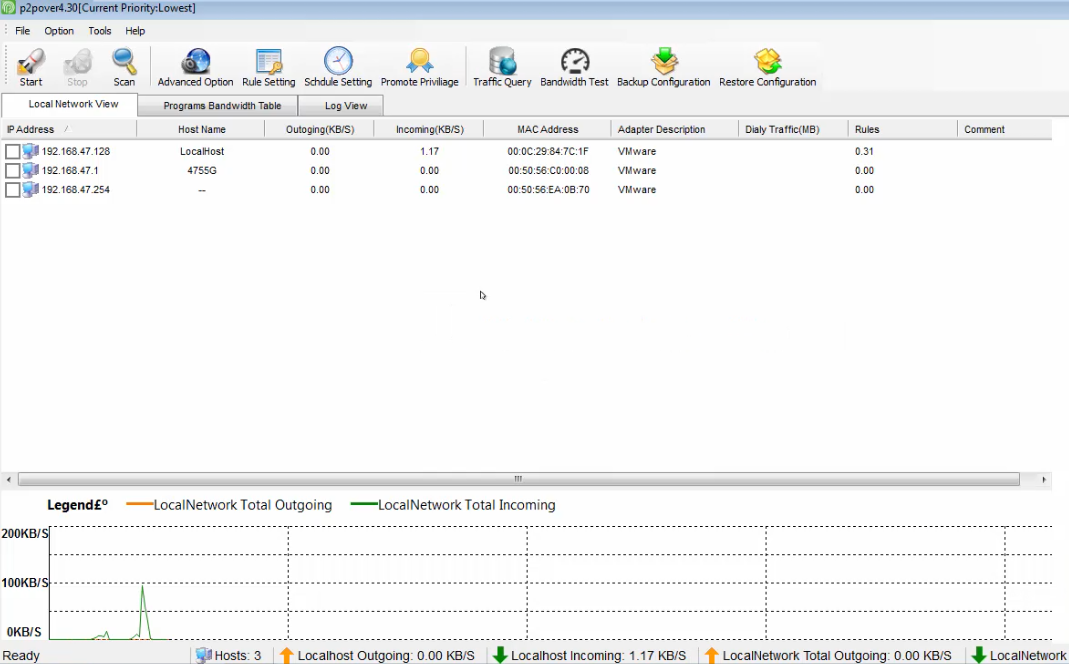
Sick of home user using most of bandwidth? Slow internet connection? This will solve your nightmare easily. Take control all user on your network for their connection download/upload speed. Better than NetCut!
HyperTerminal is known to configure devices (Cisco and more) like PuTTY but only available in Windows XP while Windows 7 it had been removed. So this is rip off directly from Windows XP so that you (Windows 7 Users) can use the Hyper Terminal like the good old days.
Step by step (with pictures) & video how to remove your windows password or break windows password easily. Works with Windows XP, Windows Vista, Windows 7, Windows 8 (Local Account)
First, you'll need 1CD/DVD or you can use Flash Drive : [Click Here] 1. DownloadISO and burning program (if you don't have any)
ImgBurn 2.5.7.0 : [MEGA]
Reset Windows Password ISO : [MEGA]
Introducing the first in a series of simple
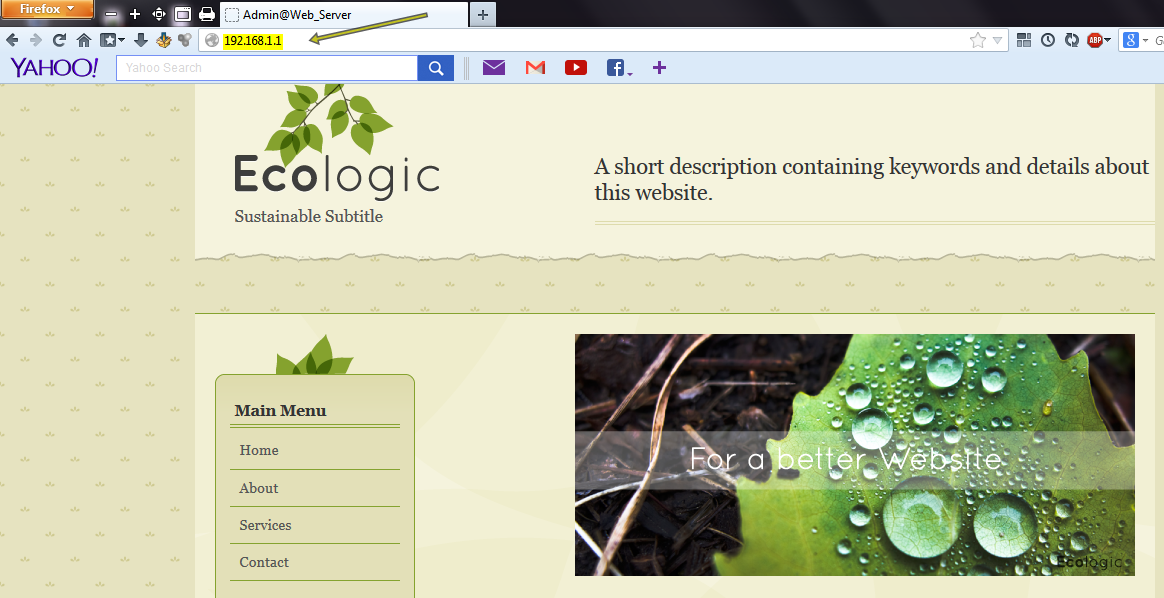
to use yet powerful servers! This webserver is so easy to use, about the
only thing you need to know how to do is drag and drop files, then just
click on the 'Start' button, and your webserver is up and running.
Create a local FTP server in your Windows 7 easily, so you can share files in your local network.
Technically you can use basic transfer setting but you won't have ftp:// : [Network Sharing]
Hibernating can cause many problems to Windows 7 users. It can cause your display to ran into blank error, dead pixel (rare). Why should hibernate anyway? Instead use Sleep.
Change default windows 7 boot screen animation with the new one easily. This software is free to use, and credits goes to who made it. #No installation needed and not working with windows 8.
System Image is useful, far more better than cloning or system restore (for personal usage) since whatever happen to your pc, you can restore the System Image to revert your pc to default setting with application that you've installed before you do the backup. Simple word : Format PC with all software and drivers installed.
No EXTERNAL HDD or CD/DVD needed. Only your computer.
(Tested on Windows 7 Home Premium 64bit and Windows 7 Ultimate 32bit)
1.Create new partition, this partition will be used to store the System Image files.
For example, R: is the new partition used to store System Image
2. Start Backup and Restore program and click to create System Image and choose the new partition as location to store.
Change the logon screen wallpaper of your computer easily with your own wallpaper set. Download Link : http://adf.ly/NFYs8(Software) Download Wallpaper : http://DirectToWallpaperSets//(Wallpapers)
1.Download and install the software (Freeware Programs)
Remove Shortcut Arrow in Desktop Windows 7 and Windows 8 easily with just few click. Download Link : http://adf.ly/N8IVR Mirror Link : http://adf.ly/N8IjG
1.Extract the ZIP Folder. 2.Open Windows Shortcut Arrow Removalfolder 3.Choose Platform ( Windows Vista/ Win 7/ Win 8) 4. Check your architecture32bit (x86) or 64bit (x64)
Add (CTRL + ALT + DELETE) to your logon screen for more security. Windows 7.
Adding secure logon can prevent mimic program to retrieve sensitive information.
1.Open up Start Menu, type in netplwiz or netplwiz.exe
Windows Media Player update really takes out your bandwidth while you not using your connection (idle) and sometime your mp3 can be broken (error) because of the update (copyright maybe) so let's turn it off forever.
1.Go to Start Menu (Win 7) or Charm Bar (Win 8), open up regedit.exe (Run as administrator)
2.Go to HKEY_LOCAL_MACHINE > Software > Policies > Microsoft. Then Add New Key and key in WindowsMediaPlayer
Prevent your Windows 7 from automatically arranged your windows when move to edge of the screen computer. 1. Go to Ease of Access Center (search in Start Menu)
Completely remove the annoying security center in windows 7
(For those who do not know what it really is please be careful on what you're doing, because this is about your system securities unless you know what you're doing.)
Cons :In my opinion.. the program itself really notify you warning but if it's about basic update and severe security alert, I though that my Antivirus is enough to do such work in blink of eye. Basically, it eat memory to real-time monitoring and I suggest shut it down.
This tutorial teach you how to create partition and delete partition easily using Microsoft Administrative Tools. 1. Right click on Computer and click Manageoropen Start Menu type in search disk manage and click on result (Create and Format hard disk partitions)